
How to Set Up IPTV on LG Smart TV Canada 2026: Complete Guide
However, IPTV LG Smart TV Canada is the smartest way to watch live TV in Canada in 2026 — and this guide shows you exactly how to get it running in minutes. Moreover, 4K IPTV Canada delivers 20,000+ live channels, 80,000+ VOD titles and buffer-free 4K streaming on every device you already own. In addition, plans start at just CAD $9.99/month and include a free Canada VPN guide to keep your streaming private.
IPTV LG TV Canada: How to Set Up IPTV on LG Smart TV Canada 2026: Complete Guide
LG Smart TVs are one of the most popular television brands in Canada, and for good reason. The webOS operating system is intuitive, and LG’s OLED and NanoCell displays deliver stunning picture quality. Setting up IPTV on your LG Smart TV in Canada is straightforward, and this complete guide walks you through every method available in 2026.
Table of Contents
- Method 1: Smart IPTV App (Recommended for LG TVs)
- Method 2: IPTV Smarters Pro on LG TV
- LG TV Model Compatibility Guide
- Troubleshooting Common LG TV IPTV Issues
- How Does LG WebOS Handle IPTV Apps?
- How Do You Find IPTV Apps in the LG Content Store?
- How Do You Optimise Picture Settings on LG TV for IPTV?
- Best IPTV Apps for LG Smart TV in Canada
- LG TV IPTV Troubleshooting for Canadian Viewers
- LG OLED vs NanoCell vs QNED for IPTV in Canada
- Frequently Asked Questions: IPTV on LG TV Canada
What You Need
- LG Smart TV with webOS 3.5 or newer (2017+)
- Internet connection: 10 Mbps+ for HD, 25 Mbps+ for 4K
- 4K IPTV Canada subscription (M3U URL or Xtream Codes credentials)
- An IPTV app from the LG Content Store

IPTV LG Smart TV Canada: Method 1: Smart IPTV App (Recommended for LG TVs)
Smart IPTV (SIPTV) is the most widely used IPTV app for LG Smart TVs in Canada. It’s available directly from the LG Content Store, requires no sideloading, and has excellent compatibility with M3U playlists and EPG guides. Note: Smart IPTV requires a one-time €5.49 (~$8 CAD) activation after 7 days of free use.
Open the LG Content Store
On your LG TV remote, press the Home button. Navigate to the LG Content Store icon (or press the Apps button on newer remotes). This opens the app marketplace.
Search for “Smart IPTV”
Use the search function in the LG Content Store and type “Smart IPTV” or “SIPTV.” Select the app from the results and click Install. The installation takes about 30, 60 seconds.
Note your LG TV MAC address
Open Smart IPTV. You’ll see your TV’s MAC address displayed on screen (format: XX:XX:XX:XX:XX:XX). Write this down, you need it to add your M3U playlist via the SIPTV web portal.
Add your M3U playlist via the SIPTV web portal
On your computer or phone, visit the Smart IPTV upload portal. Enter your TV’s MAC address and paste your M3U playlist URL from 4K IPTV Canada. Click “Upload List.” Your channels will load on the TV within 1, 2 minutes.
Refresh channels on your TV
In Smart IPTV on your LG TV, press the Menu button → Refresh channels. Your 40,000+ channels from 4K IPTV Canada will load. Navigate using the arrow keys on your remote and press OK to tune to any channel.
IPTV LG Smart TV Canada: Method 2: IPTV Smarters Pro on LG TV
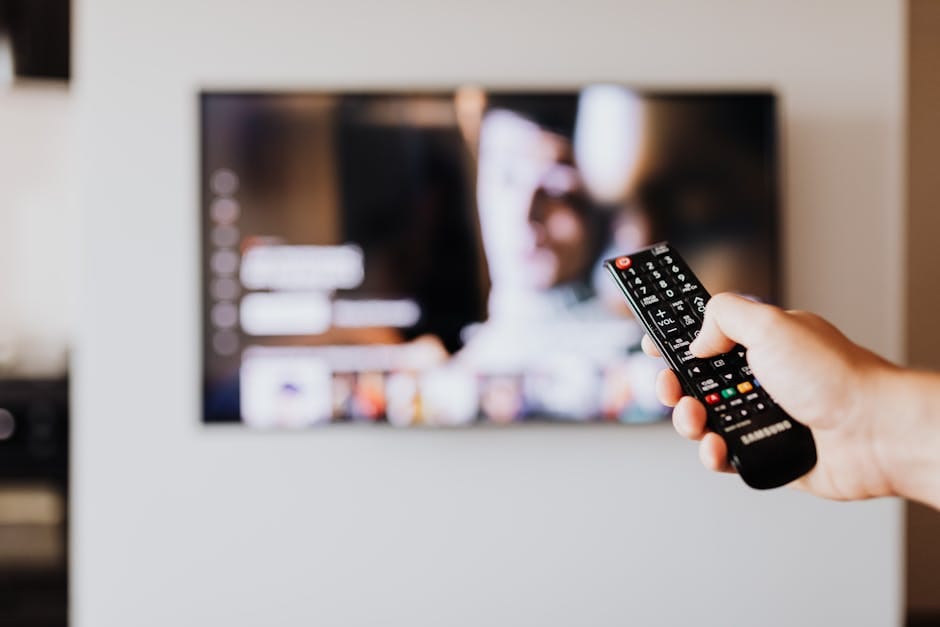
IPTV Smarters Pro is available in the LG Content Store on most webOS 4.x+ TVs (2019+). It supports both M3U playlists and Xtream Codes API login, the most convenient setup method if you have Xtream credentials from 4K IPTV Canada.
Install IPTV Smarters Pro from LG Content Store
Search for “IPTV Smarters Pro” or “Smarters” in the LG Content Store. Install and launch the app. This is a free app with no activation fee.
Select your login method
Choose “Xtream Codes API” if you have a username, password, and server URL from 4K IPTV Canada. This is the easiest option. Alternatively, choose “M3U URL” to paste your playlist link directly.
Enter your 4K IPTV Canada credentials
Enter the server URL, username, and password provided in your 4K IPTV Canada welcome email. If using M3U, paste your full M3U URL. Tap “Add User.” Your channel list loads automatically.
Browse Live TV, VOD, and Sports
IPTV Smarters Pro organizes content into Live TV, Movies, Series, and Catch-up sections. Navigate to the Sports category to find TSN, Sportsnet, RDS, and all your Canadian sports channels.
LG TV Model Compatibility Guide

| LG TV Year | webOS Version | Smart IPTV | IPTV Smarters | Best Method |
|---|---|---|---|---|
| 2017, 2018 | webOS 3.5 | ✔ | Limited | Smart IPTV |
| 2019, 2020 | webOS 4.x, 5.x | ✔ | ✔ | Either |
| 2021, 2022 | webOS 6.x | ✔ | ✔ | IPTV Smarters |
| 2023, 2026 | webOS 23, 24 | ✔ | ✔ | IPTV Smarters |
Troubleshooting Common LG TV IPTV Issues
Fix: Connect your LG TV via Ethernet cable. If using WiFi, move the router closer or use a WiFi extender. In Smart IPTV settings, reduce stream quality from 4K to 1080p HD as a test.
Fix: Some LG TVs restrict the Content Store by region. Go to Settings → General → Location → Set to Canada. Then reopen the Content Store. Alternatively, use a Firestick stick plugged into your LG TV’s HDMI port and use TiviMate instead.
Fix: This usually means the stream requires a different player codec. In Smart IPTV settings, try switching the player from the default to “External Player.” For IPTV Smarters, try changing the player from VLC to ExoPlayer or vice versa.
If your LG TV model doesn’t support IPTV apps natively, plug an Amazon Firestick 4K into any HDMI port. Install TiviMate on the Firestick for the best IPTV experience. Your LG TV becomes a smart IPTV screen instantly.
How Does LG WebOS Handle IPTV Apps?
LG Smart TVs run on WebOS, an operating system originally developed by Palm and later acquired by LG. WebOS has gone through several major versions, and understanding which version your LG TV runs helps determine the best IPTV app and setup approach for your specific model.
WebOS 4.0-4.5 (2018-2019 LG TVs): These models support Smart IPTV as the primary IPTV player. The app is available through the LG Content Store. Performance is good for HD streams, though 4K content may occasionally stutter on these older processors. If you experience lag, reducing the stream quality to 1080p in your IPTV app settings resolves the issue.
WebOS 5.0-6.0 (2020-2021 LG TVs): These models handle IPTV streaming significantly better thanks to improved processors. Both Smart IPTV and IPTV Smarters Pro work well. The LG Content Store on these models has a wider app selection, and the built-in media player handles M3U playlists more reliably than earlier versions.
WebOS 22-24 (2022-2024 LG TVs): LG rebranded its WebOS versions to match the year. These latest models offer the best IPTV experience with faster app loading, better WiFi connectivity, and native support for 4K HDR streaming. The IPTV servers that power 4K IPTV Canada deliver optimal quality on these newer LG panels.
How Do You Find IPTV Apps in the LG Content Store?
The LG Content Store is the equivalent of an app store for LG Smart TVs. Accessing it is straightforward: press the Home button on your LG Magic Remote, then navigate to the LG Content Store icon in the app launcher bar at the bottom of the screen.
Once inside the Content Store, use the search function to find your preferred IPTV player. Search for “Smart IPTV” or “IPTV Smarters” to find the two most reliable IPTV apps for LG televisions. Select the app and press Install. The download typically takes under a minute on a standard Canadian internet connection.
After installation, the IPTV app appears in your app launcher on the home screen. Open it and enter your 4K IPTV Canada credentials (M3U playlist URL or Xtream Codes login) to load your complete channel list. If you need credentials, visit our pricing page to subscribe, or contact support via WhatsApp or email at contact@4k-iptv-canada.com.
Note that some IPTV apps available on other platforms (like TiviMate) are not available natively on LG WebOS. TiviMate is designed for Android-based devices. If you prefer TiviMate’s interface, consider connecting an Amazon Firestick to your LG TV’s HDMI port. This gives you access to the full Android IPTV app ecosystem on your LG display.
How Do You Optimise Picture Settings on LG TV for IPTV?
LG televisions, especially the OLED and NanoCell models, offer exceptional picture quality that makes IPTV content look outstanding when properly configured. Here are the recommended picture settings for the best IPTV viewing experience on your LG Smart TV.
Picture Mode: Set to “ISF Expert (Dark Room)” for evening viewing or “Cinema” for a balanced picture. Avoid “Vivid” mode, which over-saturates colours and adds excessive sharpness that makes compressed IPTV streams look worse rather than better.
For Live Sports (NHL, UFC, Soccer): Enable “TruMotion” or the equivalent motion smoothing setting on your LG TV. While motion smoothing is generally discouraged for movies and TV shows, it significantly improves the clarity of fast-moving sports content. Set it to “User” mode with De-Judder at 3 and De-Blur at 7 for the best balance between smooth motion and natural appearance. This makes a visible difference when watching NHL hockey or UFC fights through your IPTV app.
HDMI Settings (if using a Firestick): If you have connected an Amazon Firestick to your LG TV for IPTV, go to Settings, then General, then HDMI Settings, and enable “HDMI Deep Colour” for the HDMI port your Firestick is plugged into. This allows HDR and 4K signals to pass through correctly from the Firestick to the LG panel.
Network Settings for IPTV: In Settings, then Network, verify that your LG TV is connected to your 5GHz WiFi network rather than 2.4GHz. The 5GHz band provides higher throughput and lower latency, which matters for live IPTV streams. If your LG TV has an Ethernet port, using a wired connection is always the preferred option for eliminating WiFi-related buffering during peak viewing times.
For a comparison of IPTV setup on other Smart TV brands, see our Samsung Smart TV IPTV guide and Apple TV IPTV guide. For understanding how IPTV compares to your current cable service, read our IPTV vs Bell and IPTV vs Rogers comparisons.
Best IPTV Apps for LG Smart TV in Canada
LG Smart TVs running webOS give you several excellent options for accessing Canadian IPTV content. Here are the most reliable choices for Canadian viewers.
IPTV Smarters Pro for LG TV
IPTV Smarters Pro is one of the most popular IPTV applications available on LG webOS. It supports both M3U playlists and XTREAM Codes connections, making it compatible with virtually every Canadian IPTV provider. The interface is clean and TV-optimised, with a built-in EPG that displays Canadian programme schedules accurately. To install, open the LG Content Store, search for “IPTV Smarters,” and install it directly, no sideloading needed.
SS IPTV for LG webOS
SS IPTV is specifically designed for Smart TVs including LG models. It supports M3U, XSPF, and W3U playlist formats, giving it broader compatibility than many competing apps. Canadian users appreciate its smooth channel switching and reliable EPG performance. Find it in the LG Content Store under Entertainment.
Smart IPTV (SIPTV) for LG TV
Smart IPTV has a long track record of reliability on LG Smart TVs across Canada. Setup involves registering your TV MAC address on the SIPTV portal and uploading your M3U playlist there. While slightly more technical, the payoff is a rock-solid streaming experience with excellent Canadian channel support and consistent EPG accuracy.
Pro Tip
For the most stable IPTV performance on LG Smart TV in Canada, connect your TV directly to your router via Ethernet cable. LG TVs support Gigabit Ethernet, providing far more consistent speeds than Wi-Fi, especially critical for 4K streams during peak Canadian viewing hours (7-10 PM).
LG TV IPTV Troubleshooting for Canadian Viewers
IPTV App Not Available in LG Content Store Canada
Some IPTV apps appear in certain regional LG Content Store versions but not others. If you cannot find your preferred app in the Canadian store, try temporarily changing your LG TV’s country setting to United States or United Kingdom, then search for the app again. Once installed, revert your country setting without affecting the app.
Channels Buffering on LG Smart TV
Buffering is most commonly caused by Wi-Fi interference, ISP congestion, or an overloaded IPTV server. Switch to wired Ethernet, restart your router, lower stream quality from 4K to 1080p during peak hours, or contact your provider for an alternate server address.
EPG (TV Guide) Not Loading on LG TV
EPG issues on LG Smart TVs are typically caused by an expired XMLTV URL or time zone mismatch. Verify your EPG source URL is current and that your time zone is set correctly: Toronto/Ottawa = UTC-5 (EST) or UTC-4 (EDT); Vancouver = UTC-8 (PST) or UTC-7 (PDT).
Avoid installing IPTV apps from unofficial sources on LG webOS TVs. LG webOS has limited sideloading capability and unofficial APKs can cause stability issues. Stick to apps available through the official LG Content Store.
LG OLED vs NanoCell vs QNED for IPTV in Canada
LG OLED TVs deliver the best picture quality for IPTV content in Canada, with perfect blacks, infinite contrast, and exceptional HDR performance. Dolby Vision support built into LG OLEDs enhances compatible IPTV streams automatically, excellent for 4K HDR sports and movies.
LG NanoCell and QNED TVs offer excellent IPTV performance at more accessible Canadian price points. Their high-brightness panels are great for daytime viewing of NHL and CFL games. Both support 4K streaming and share the same webOS platform as LG OLED models, the IPTV setup process is identical.
For a complete comparison of IPTV services to pair with your LG TV, see our best IPTV Canada 2026 guide.
Official Resources
Frequently Asked Questions: IPTV on LG TV Canada
Which is the best IPTV app for LG Smart TV in Canada?
For LG TVs running webOS, Smart IPTV (SIPTV) is the most popular choice due to its simplicity and reliability. IPTV Smarters Pro is the best option for Xtream Codes login. Both work well with 4K IPTV Canada subscriptions.
Can I use TiviMate on an LG Smart TV?
TiviMate is not natively available on LG webOS. However, you can plug a Firestick or Android TV stick into your LG TV’s HDMI port and use TiviMate through that device. This is actually the best setup for sports watching.
Does 4K IPTV work on LG OLED TVs?
Yes. LG OLED TVs (C-series, G-series) have excellent 4K HDR capabilities. With 4K IPTV Canada’s 4K streams and your LG OLED display, the picture quality rivals any premium broadcaster. Your internet connection is the only limit.
How much internet speed do I need for 4K IPTV on LG TV?
For 4K streaming on your LG TV: 25 Mbps dedicated to that stream. For HD: 10 Mbps. Most Canadian internet plans (Bell Fibe 100, Rogers Ignite 150+) comfortably support 4K IPTV with bandwidth to spare.
Content concerns? Please review our DMCA policy · Préoccupations relatives au contenu? Consultez notre politique DMCA.
🔥 Ready to Start Streaming?
Get the best 4K IPTV experience in Canada with 40,000+ channels and lag-free sports.
View Canadian Pricing Plans